


X Icon Changer - Change Icons
4.313.21K Reviews
App Specs
- Version
- 4.5.6
- Updated On
- License
- Free
- Downloads
- 50,000,000+
- Developer
- ASTER PLAY
- Categories
- Personalization
- Platform
- Android, iOS
Screenshots
 Analysis by AppCompare
I like changing a phone’s look in small, practical ways rather than rebuilding the whole home screen. X Icon Changer is an Android personalization app for that job: it lets me create replacement shortcuts with different icons and names, while keeping the apps themselves in place. It suits anyone who enjoys a coordinated screen, but it is worth understanding what a shortcut-based change means before spending time styling every icon.
A useful distinction before you begin
Changing an icon through this app is not the same as replacing the original artwork inside the installed app. You are creating a home-screen shortcut that points to the app, so the result depends partly on how your Android launcher displays shortcuts. That distinction matters if you expect the new design to appear everywhere: it is mainly a home-screen customization, not a system-wide makeover of every menu or app list.
I would start with just two or three shortcuts rather than redesigning the entire screen. Pick apps you open often, make the replacements, and check how they look beside your existing icons. This small trial helps you spot mismatched shapes, labels that feel cramped, or a style that is attractive on its own but hard to scan in a group.
Why Change Icons?
First off, you might be wondering why anyone would bother changing their icons. Well, for those of us who spend a lot of time on our phones, a fresh look can make a big difference. Whether you're into minimalistic vibes, flashy colors, or something uniquely you, X Icon Changer lets your personality shine right through your screen.
Getting Started
Downloading the app was a breeze from the Play Store. Once installed, I was greeted with a user-friendly interface. No need for any wizardry here; it's straightforward and intuitive. Just tap your way through a couple of prompts, and you're good to go.
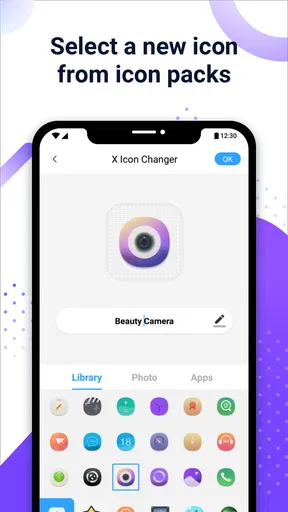
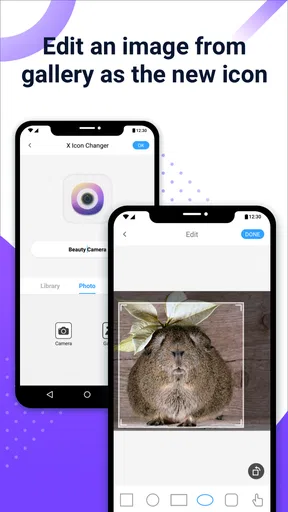
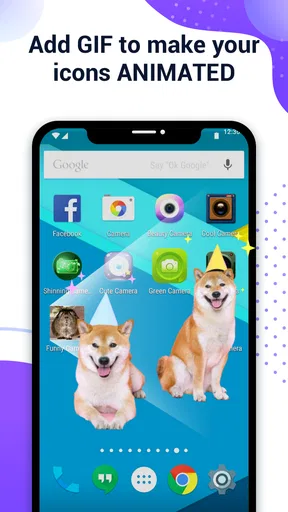
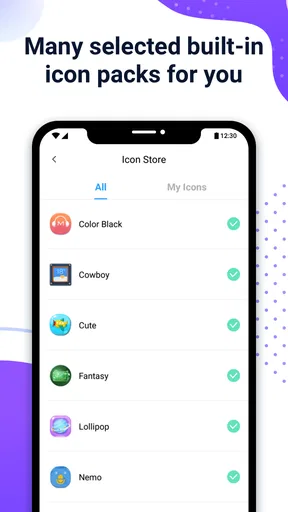
The app supports a variety of icon packs, and you can also use your own images. That means your pet's adorable face can replace that boring old calculator icon. Pretty cool, right?
A careful first setup pays off
When choosing an image, I find it helps to think about how it will look at small size, not just in the selection screen. A detailed photo may be fun, but a simple crop with one clear subject is easier to recognize at a glance. For a tidy theme, choose a consistent visual rule—such as similar colors or a repeated background—before making lots of shortcuts. That keeps the screen readable as well as personal.
Worth Reading Before You Choose

Baby Panda World Brings Quick Play to Modern Phones, but Its Game Library Feels Busy

ESPN’s Live Game View Makes Following Close Games Easier

QuizzLand Review: A Good Fit for Short Trivia Breaks, Not Every Player

Basketball Stars: Multiplayer Is Fast, but Can It Recover When Matches Go Wrong?

WEBTOON Turns Phone Updates Into a Better Reading Routine

Link to Windows Runs on Shared Habits, Not Social Feeds
It is also sensible to keep the original app names or use short replacements. A long custom label can wrap or compete with nearby icons, especially if your launcher uses compact spacing. I treat renaming as a navigation aid rather than a place for jokes: a clear label is more useful when I am trying to open the right app quickly.
Features That Stand Out
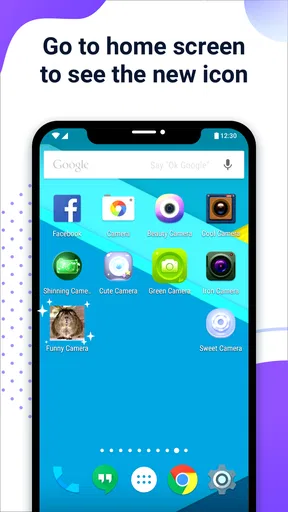
One feature I absolutely love is the ability to customize not just the icon but the app name as well. Want to rename "Settings" to "Control Center"? Go right ahead. It's these little touches that make your phone feel truly yours.
Another great aspect is the app's flexibility. You can play around with the size and shape of the icons, and there's even an option to add a widget-like label beneath them. It feels like a mash-up of creativity and functionality.
Settings worth checking as you build a theme
Rather than changing every available option at once, I adjust one thing at a time and look at the home screen between edits. That makes it easier to tell whether a size, shape, or label choice actually improves the layout. A design that looks polished in a preview can feel crowded next to a search bar, folder, or other launcher element, so the real screen is the best test.
I also decide in advance which apps should remain instantly recognizable. For everyday essentials—such as the apps I use to call someone, check a message, or open settings—I favor familiar symbols and readable names. More decorative images work better for less urgent shortcuts. This balance lets the phone feel customized without making routine tasks slower.
Using the App
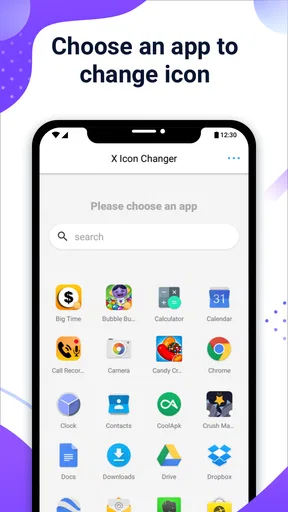
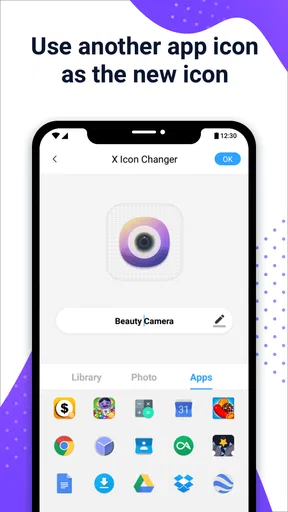
The process is pretty straightforward. You pick an app you want to change, select a new icon from the gallery or your own images, and voila! Your home screen starts to look like a mini art gallery. The app even offers a preview feature, so you can see how everything will look before committing. It's a tiny detail, but it makes a big difference, trust me.
"It's a tiny detail, but it makes a big difference, trust me."
Faster patterns for everyday use
A repeatable approach saves time: choose a small set of frequently used apps, settle on one icon style, and apply the same visual logic to that group. For example, I might use a restrained palette for the shortcuts I tap during a busy morning, while leaving less-used apps alone. The benefit is not just a coordinated screen; the familiar placement and visual cues make the shortcuts easier to find.
For a practical scenario, imagine changing your home screen for a workday. You could create a compact row of shortcuts for the apps you need during that routine, with clear labels and icons that stand apart from games or media apps. Later, if the arrangement stops being useful, you can revise the shortcuts without reinstalling those apps. I would keep the underlying apps organized too, so the customized screen remains a helpful front door rather than the only way to navigate.
If you are using personal photos, prepare a few crops before starting instead of choosing images impulsively one by one. A close-up with a strong silhouette tends to remain legible when reduced. I would avoid using nearly identical pictures for adjacent shortcuts: even if they fit a theme, they can slow down recognition when you are moving quickly.
How it compares with other ways to customize
Compared with leaving the default icons untouched, this approach offers far more control over the look of selected home-screen shortcuts without requiring you to change the apps themselves. Compared with adopting a different launcher or a complete icon pack, it is a narrower, more selective option: useful when you want to personalize a few choices, but less compelling if you want a consistent redesign across the whole interface with one broad change.
That difference also shapes who should skip it. If you are happy with your launcher’s built-in icon controls, or you want every app drawer and system screen to follow one theme, the launcher’s own customization tools may be a better fit. If you want to experiment with individual images and labels while keeping your current setup, this app is the more direct route.
Room for Improvement
While X Icon Changer is pretty fantastic, it’s not without its quirks. Occasionally, the app icons would revert to their original state after a reboot. It’s a minor hiccup, but something to be aware of if you're a perfectionist like me.
Another thing to note is that some users have reported issues with certain launchers. It worked well with mine, but a little heads-up to check compatibility with your specific setup wouldn’t hurt.
Limits that matter before committing
Because the result is a shortcut, I would not assume that every launcher will present it exactly the same way. A launcher may handle shortcut labels, spacing, or appearance differently, and a change that looks right on one home screen may need adjustment on another. Start with a test shortcut and make sure it behaves as expected before investing time in a full theme.
There is also a maintenance trade-off. If you rearrange your home screen often, use several launchers, or routinely restore a device setup, individual replacement shortcuts can require extra attention compared with a theme managed directly by a launcher. For someone who values a stable, uniform look with minimal upkeep, the built-in icon options of a launcher may be less fiddly.
The app is free to install, though it includes in-app purchases priced at $1.99 per item. I would explore the basic workflow first and decide whether the available customization suits my needs before buying anything. It is rated for Everyone, and its developer is ASTER PLAY. The current version is 4.5.2, with Android 5.0 as the minimum operating system, so an older device below that requirement is not a fit.
Who will get the most from it
I’d recommend this to someone who enjoys tweaking a home screen, wants to use personal pictures, or needs a few shortcuts with names that make more sense to them. It is especially appealing if you prefer gradual changes: you can customize a handful of icons and stop when the screen feels right, rather than committing to a complete launcher overhaul.
I would steer away from it if you expect one change to replace an app’s icon everywhere, want a polished theme applied uniformly across the entire phone, or dislike maintaining shortcuts. It is also not ideal for anyone who prioritizes instant recognition above appearance and would rather keep familiar default icons. Knowing that boundary helps set fair expectations: this is a focused personalization tool, not a replacement for a launcher.
Final Thoughts
In conclusion, X Icon Changer is a delightful tool for those looking to breathe new life into their phone's appearance. It's easy to use, offers a ton of customization options, and is generally a fun way to express yourself. Sure, it has a couple of glitches, but overall, it’s a nifty app that’s worth checking out if you’re in the mood to jazz up your digital space.
So, if you're ready to give your icons a little makeover and embrace your creative side, download X Icon Changer and start crafting a home screen that screams "you"!
My verdict after settling into a routine
The appeal is clearest when I treat icon changes as a small system rather than a one-time burst of decoration. I choose a handful of shortcuts, keep the image style and naming approach consistent, and check that the layout still works during ordinary use. That habit makes the customization feel intentional instead of turning the home screen into a collection of unrelated pictures.
The app has an average rating of 4.3 from around 659,000 ratings, with roughly 13,000 written reviews and over 50 million installs. Those figures suggest it has reached a broad audience, but they do not remove the practical caveat I would give a friend: launcher behavior matters, and shortcut-based customization is not identical to system-level icon replacement. It was released on August 14, 2019, and remains a free app to try.
For me, the strongest reason to use it is the freedom to personalize selected shortcuts with images and names while preserving the rest of my Android setup. The strongest reason to pause is the possibility of extra upkeep, especially if a launcher behaves unexpectedly or the phone’s layout changes. I’d test a small set first, keep the most important icons easy to recognize, and expand the theme only if it makes daily navigation better. That is the difference between a screen that merely looks different and one I actually enjoy using.
Pros
- Customizes app icons easily.
- User-friendly interface.
- Supports various icon packs.
- No need for rooting device.
- Regular updates with improvements.
Cons
- Contains ads in free version.
- Limited features without premium.
- May slow down older devices.
- Some icons require manual adjustment.
- Not all icons change instantly.
FAQs for X Icon Changer - Change Icons
What is X Icon Changer and how does it work?
X Icon Changer is an app that allows users to customize their smartphone's app icons without rooting the device. By selecting images from your gallery or using built-in icon packs, you can replace the existing icons with personalized versions, giving your home screen a unique look. The app works by creating a shortcut with the new icon, leaving the original app intact.
Is X Icon Changer safe to use on my device?
Yes, X Icon Changer is safe to use. It doesn’t require rooting your device, which minimizes security risks. The app only accesses necessary permissions, such as storage, to change icons. It’s crucial, however, to download the app from a trusted source like the Google Play Store or Apple App Store to avoid malicious versions.
Will using X Icon Changer affect my phone's performance?
X Icon Changer generally has minimal impact on your phone's performance. It creates shortcuts for new icons without altering the original apps, so there’s no significant increase in resource usage. However, using too many customized icons might slightly slow down your home screen’s loading time, albeit not noticeably on most modern devices.
Can I revert back to the original icons after using X Icon Changer?
Yes, reverting to the original icons is straightforward. You can simply delete the shortcuts created by X Icon Changer, and your device will default back to the original app icons. There’s no permanent change to the apps, ensuring flexibility in customization and allowing you to switch between original and custom icons easily.
Does X Icon Changer support all apps on my device?
While X Icon Changer supports most apps, there may be exceptions where icon customization is not available due to app restrictions or system limitations. Generally, popular apps and standard system apps can be customized. It’s best to test with the specific apps you wish to change to ensure compatibility.


